Get Told When a Web Page Changes, or When New Mail Arrives
Ask Foxl to watch a page and your computer checks it every 5 minutes without the model, until the first match. For Outlook, Foxl can act on new mail: summarize it, tell you, or draft a reply, and only ever read.
On this page
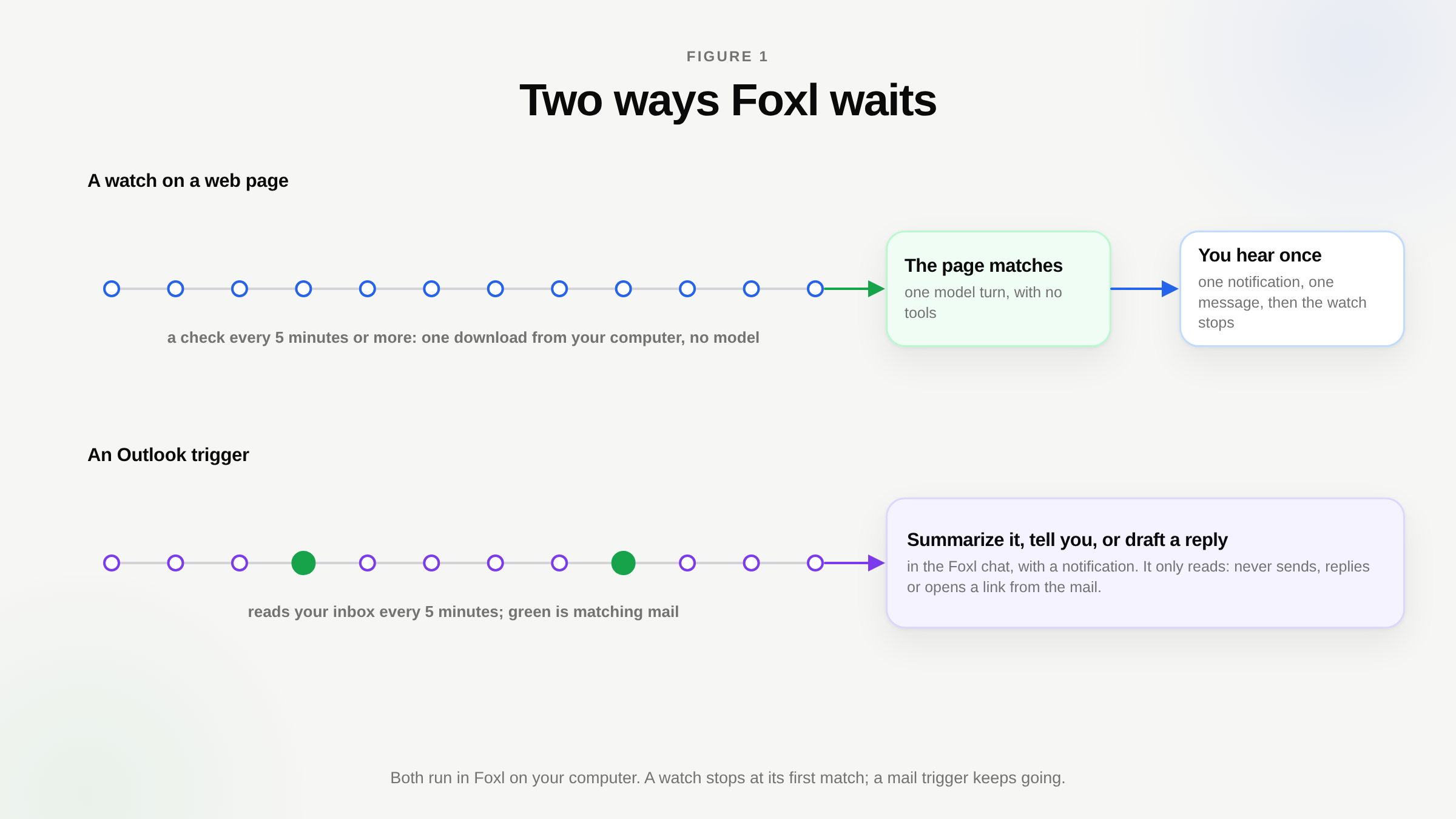
To get told when a web page changes, ask Foxl in a chat: "tell me when this jacket is back in stock", with the link. Foxl turns that into a watch. Your computer checks the page no more than once every 5 minutes until the end you set, and a check uses no model, so it costs nothing. The first time the page matches, you get one notification, the chat you asked in gets a card with what the page showed, and the watch stops. On our own release day, a watch on foxl.ai's changelog found v0.9.6 on its 16th check, 17 seconds after the release finished deploying the site.
Foxl can wait for new mail the same way. Ask it to act when an email from your landlord arrives in Outlook, and once you confirm, it summarizes each such email, tells you about it, or drafts a reply for you to review. Both kinds of waiting run on your computer, and both reach your phone.
Set up a watch, step by step
The screens below are Foxl 0.9.8 on a test computer, with Claude Sonnet 5.5 on Amazon Bedrock as the model.
1. Ask in a chat
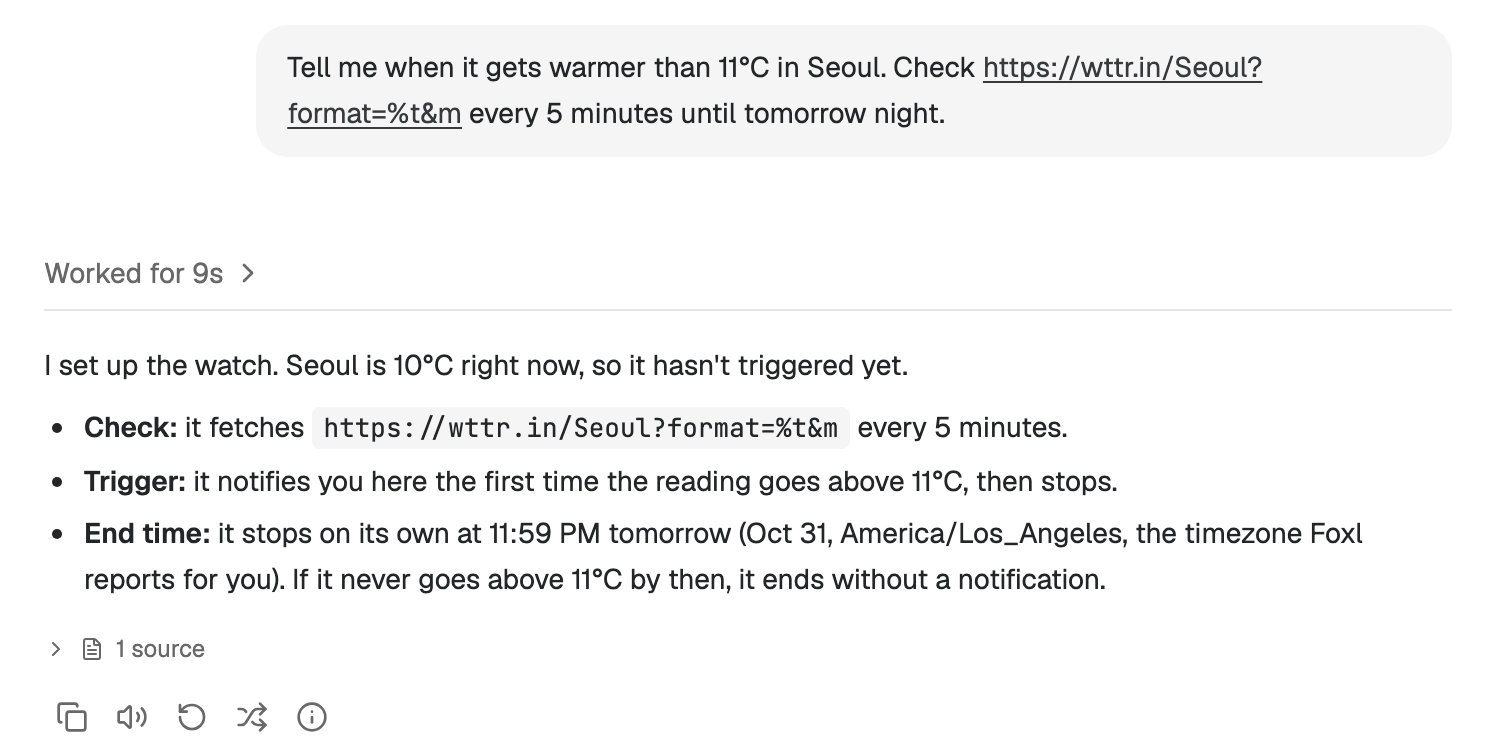
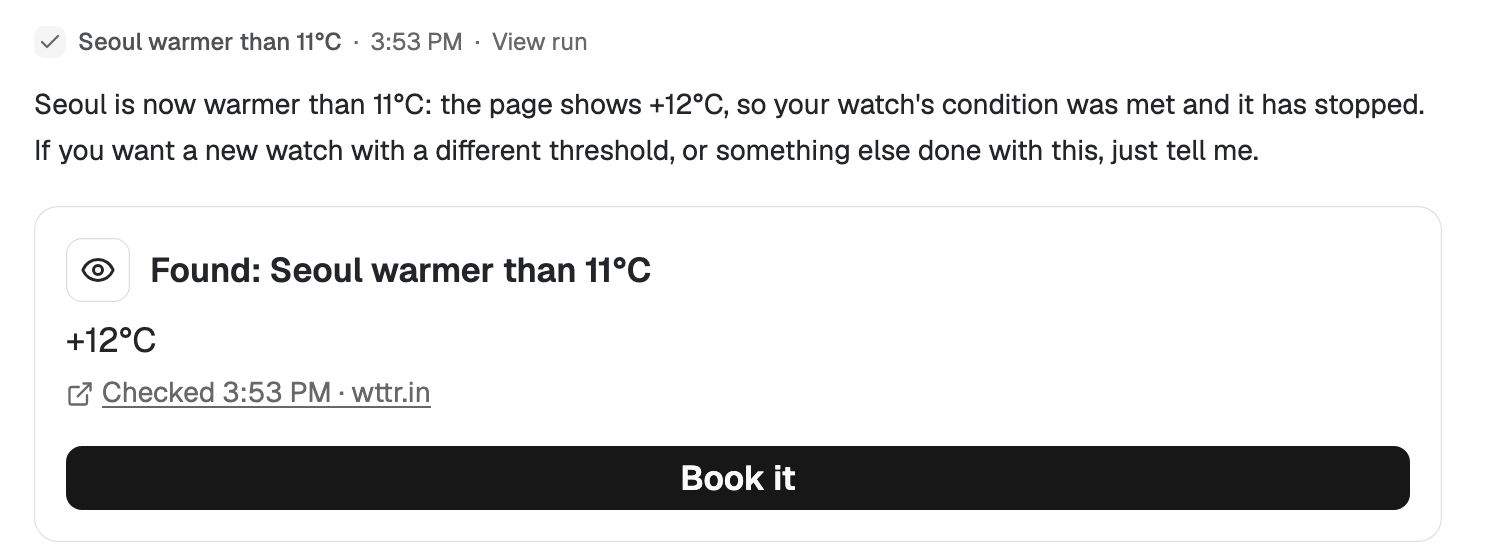
Say which page, what you are waiting for, and until when. Foxl reads the page once, writes down one condition, and answers with what the page says now, what it will wait for and when the watch ends (Figure 1). A watch always has an end, at most 30 days away.
2. Find it on the Schedules page
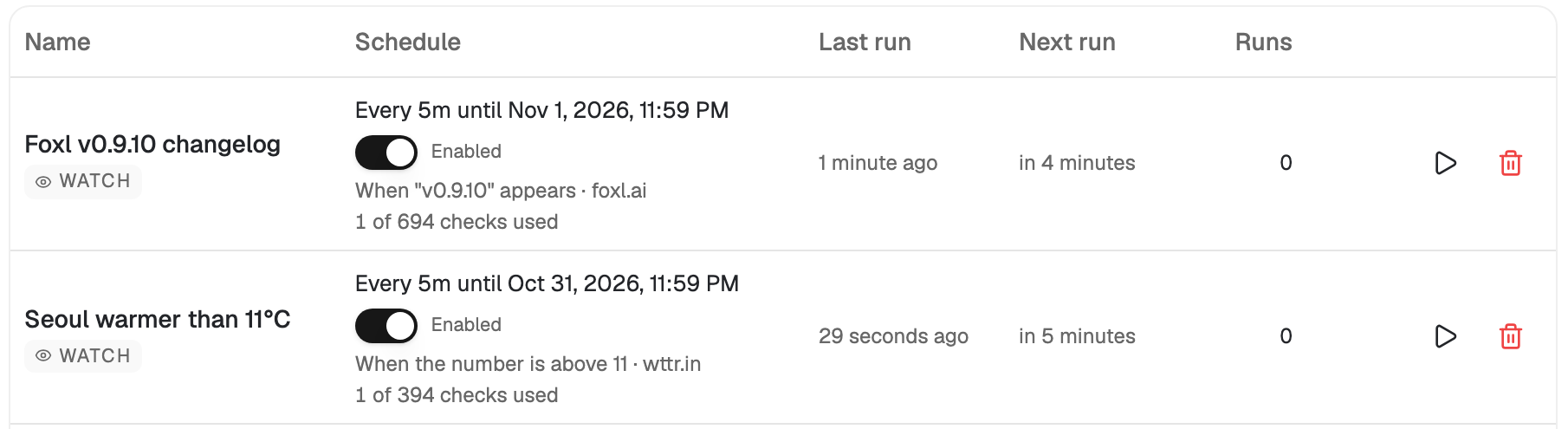
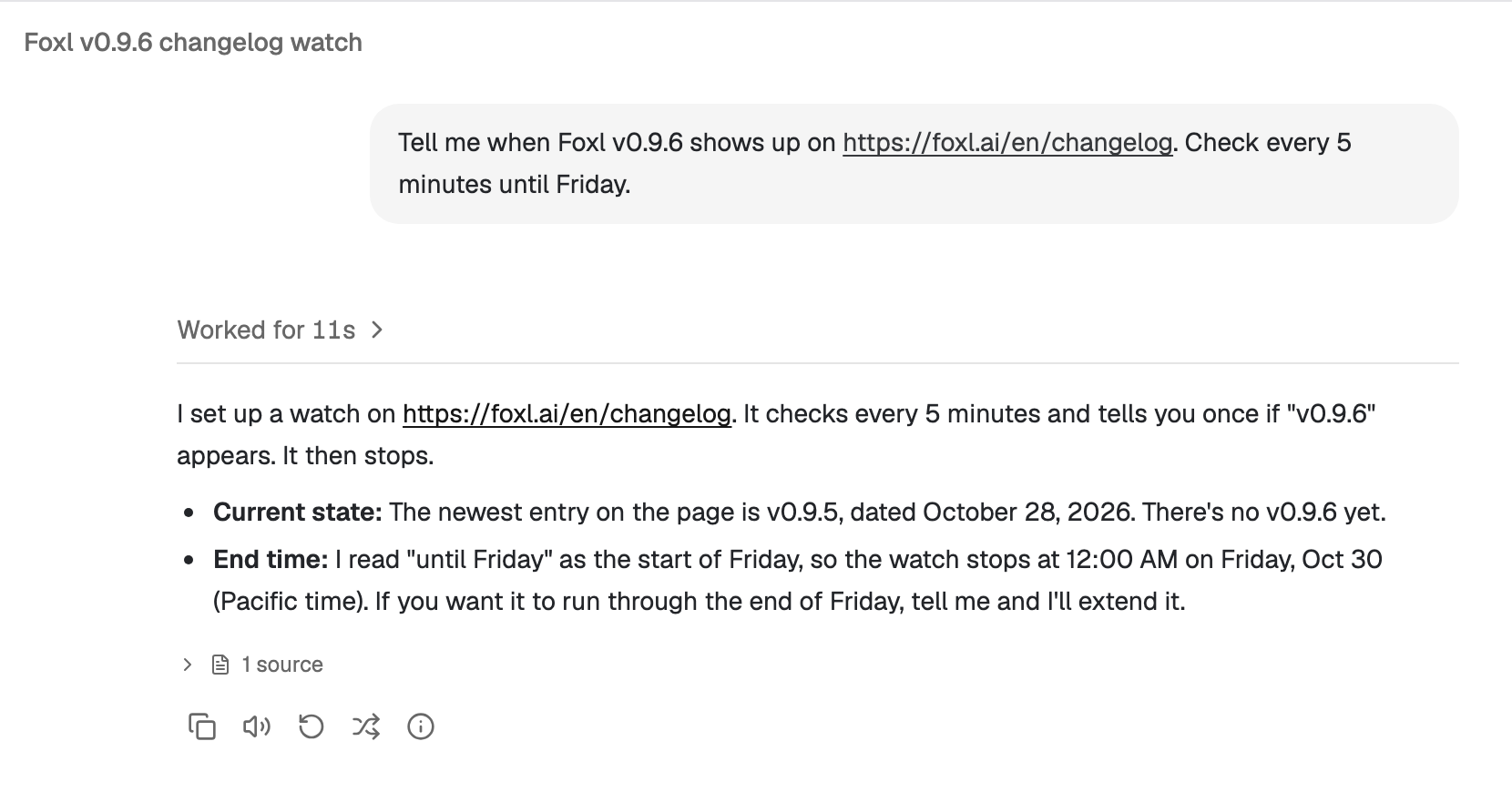
Open Schedules. A watch is marked Watch, and its row says how often it checks and until when, what it waits for on which site, and how many of its checks it has used (Figure 2). The first check runs 10 seconds after the watch is made. The play button is Check now, which runs a check at once; the switch pauses the watch, and the bin deletes it. A watch that reads its page in Foxl's browser says In Foxl's browser on its row.
3. Follow it from your phone
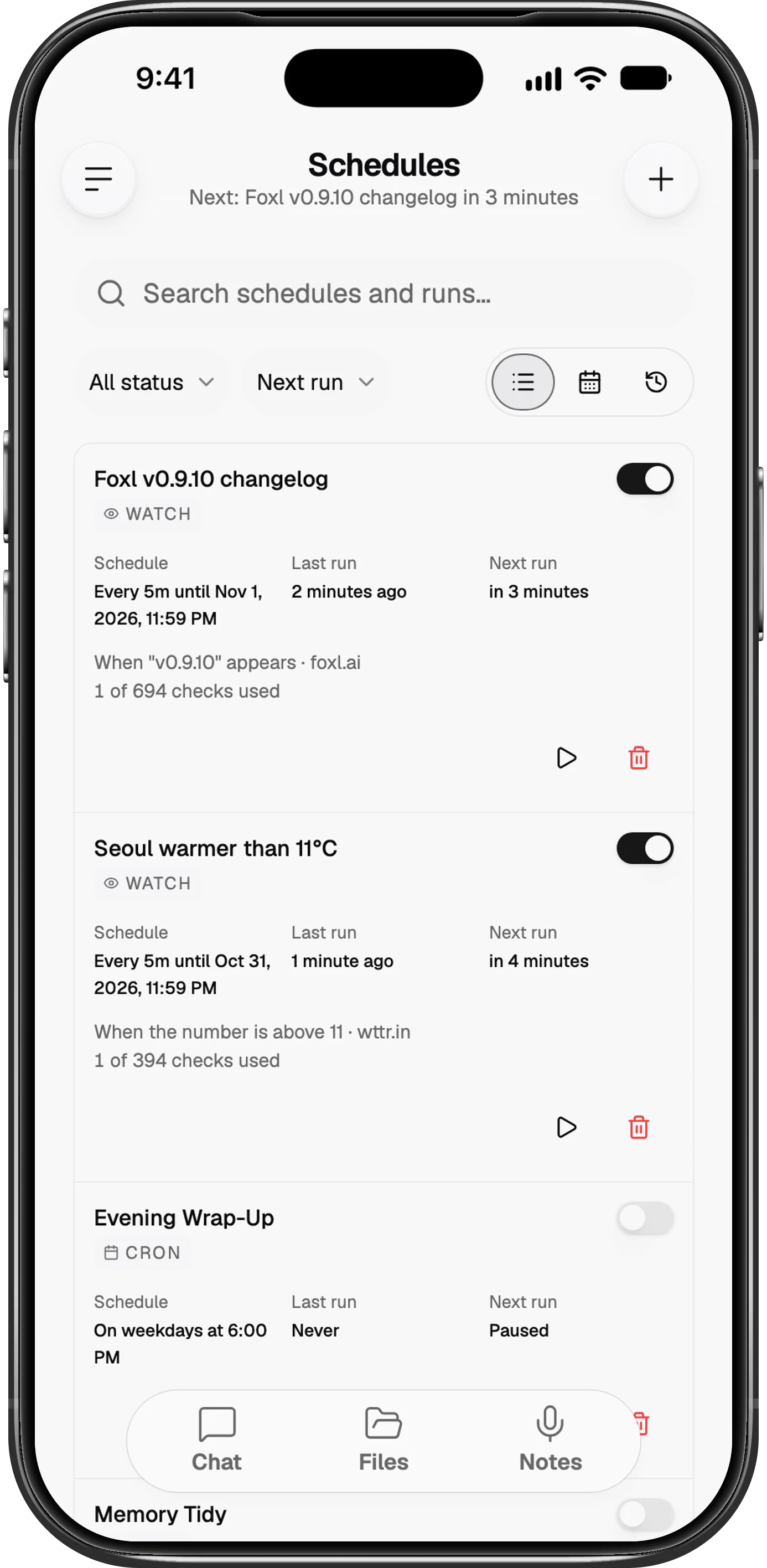
With remote access on (Settings, Connect > Mobile/Web), the same list is on the Schedules page of the iPhone and Android apps and of app.foxl.ai in a phone's browser (Figure 3), and a match's notification reaches the phone. The checks still run on your computer.
4. When the page matches
At the first match the watch stops and the model runs once, with no tools, to write the message. The chat you asked in gets a card with what the page showed, when it was checked and on which site (that line opens the page), and Book it while the card is the chat's newest message (Figure 4). Book it sends your go-ahead as an ordinary message in that chat, so a step that pays or books still asks you first. The From Foxl chat keeps a line about the find too.
What a watch can wait for
When Foxl makes a watch, it writes down one condition, and every check decides it without a model:
- Words appear, such as "In stock" or a new episode's title. Case and spacing do not matter.
- Words are gone, such as "Sold out". This one also needs a part of the page to read, or a word that must still be there, because an error page or a redesigned page lacks "Sold out" too.
- A number goes above or below a value, such as a price under 200. Foxl reads the first number in the part of the page it was told to read.
A watch goes by the text the page shows. Words in the page's tab title or in parts of the page it keeps hidden do not count, so a sold-out page whose title mentions a free seat is not reported as found. Once a watch ends, its row on the Schedules page says Found or Stopped.
Will a watch work on my page?
Most pages work. A plain page is checked the way a link preview reads it: one download, no browser. A page that builds its content with JavaScript, or shows it only after you sign in, is checked in Foxl's own browser instead, using the sign-in Foxl saved for that site. That browser opens with no window, reads the page for a few seconds and closes, still at most once every 5 minutes and still without the model.
When the site shows its sign-in page, the watch pauses and asks you once to sign in. Sign in to the site in a chat, then switch the watch back on in Schedules.
Some pages are refused or stop a watch on purpose. A watch reads public addresses only, so nothing on your home network. A site on your Web Access blocked list is refused. A page that asks whether you are human (a CAPTCHA or a similar check), or a site that turns away automated browsers, stops the watch and says why, because Foxl never solves one. A page that cannot be read three checks in a row stops it too, with the reason.
What a watch costs, and how it treats the site
A plain check is one download of one page from your computer, up to 400,000 characters of it, within 20 seconds; a check in Foxl's browser is one short browser visit. Neither goes through a Foxl server or runs a model, so a watch that never matches costs you nothing but a little bandwidth. The model runs once, when the page matches: one turn that writes the message you get, with no tools, so it cannot click, book or buy anything.
| Bound | Value |
|---|---|
| Time between checks | 5 minutes at least, up to 24 hours |
| Checks per watch | at most 3,000 (30 days at 5 minutes would be 8,640) |
| Longest watch | 30 days |
| Watches at once | 10 in all, 1 per site |
| A busy site (HTTP 429 or 5xx) | the time between checks doubles |
The one-per-site rule and the 5-minute floor hold for every site, ticket sellers included, so a watch never hammers anyone. When a busy site keeps failing, three failures in a row pause the watch.
We watched our own release
On October 28, 2026 we asked Foxl to tell us when v0.9.6 showed up on foxl.ai's changelog, the page this site updates on every release (Figure 5). In one turn it read the page to see what was there, made the watch and answered: three calls to Claude Sonnet 5.5 on Amazon Bedrock, $0.07. From then on our computer checked the page every 5 minutes.
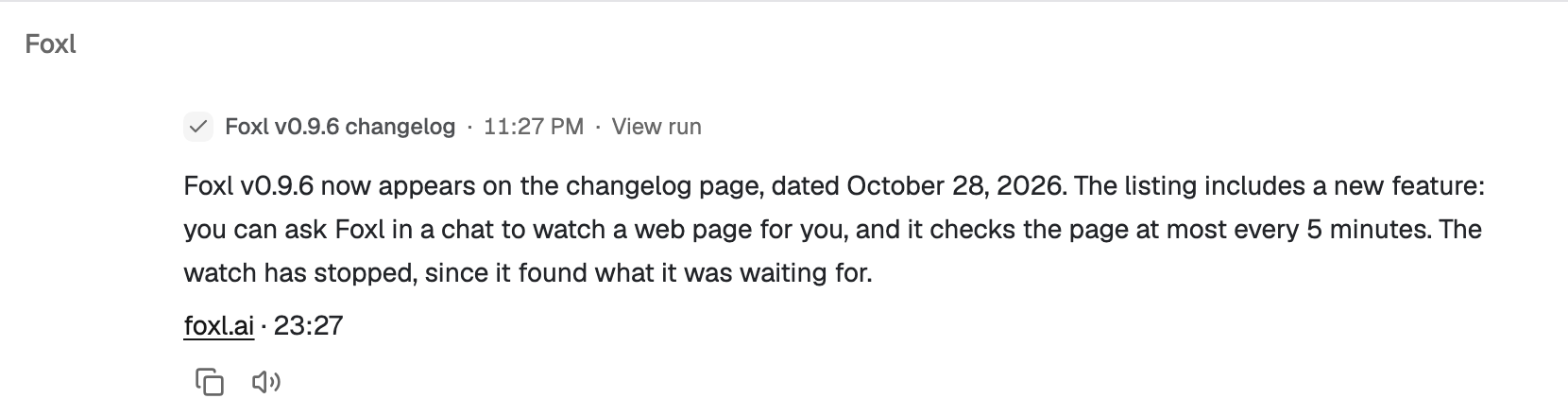
The step of our release that deploys foxl.ai finished at 06:26:46 UTC. The watch's next check, at 06:27:03, found "v0.9.6". It was the 16th check, 1 hour and 15 minutes after the watch was made. Only then did the model run again, once, for $0.0135, to write the one message in the Foxl chat (Figure 6). None of the 15 checks before it ran the model or added a run to the Runs list; the Schedules page counted them and then marked the watch Found (Figure 7). That was v0.9.6, which posted the find in the Foxl chat; since v0.9.7 it is the card in Figure 4, in the chat where you asked.

The whole watch cost $0.084 in model calls, and $0.07 of that was setting it up. Before v0.9.6 the same request could only be an ordinary schedule, a full model turn on every run: 16 turns for the same answer.
Acting when new mail arrives
The second way Foxl waits is for mail. With Microsoft 365 connected on your computer, ask in a chat, for example "when an email from my landlord comes in, summarize it". Foxl shows what it will watch for in one sentence, who the mail is from or which words are in its subject, and what it will do, and it starts only after you confirm. It never sets itself up.
Your computer then looks at your Outlook inbox every 5 minutes. When matching mail arrives, Foxl does the one thing you chose and posts it in the From Foxl chat with a notification:
- Summarize the email.
- Tell you it arrived.
- Draft a reply for you to review, written in the chat. Foxl does not put it in your mailbox or send it.
A triggered run only reads: it never sends, replies or opens a link from the mail, so a stranger's email cannot make Foxl do anything. It handles at most 10 mails an hour and runs at most 12 times a day unless you ask for other numbers, and when it cannot read your inbox it says so instead of staying quiet. You can have up to five. The Schedules page lists them under Triggers, with what each watches for, what it does, when it last checked your inbox and how many times it has run; switch one off to pause it, or delete it there.
A trigger can watch a Slack channel the same way, through your Slack connection: "when a new bug report lands in #support, draft a fix plan for me to review". New messages in that channel start it, from anyone but you; it only reads and tells you in Foxl, and never posts in Slack. Triggers run in the desktop app, for Outlook mail and Slack channels.
When it is time to act
A match tells you; acting on it is your call, in the chat. Press Book it on the card or reply to it ("order it in medium"), and that is an ordinary chat turn, which asks before it pays or books.
Since v0.9.6 the waiting goes both ways. When Foxl asks before a step in your chat while you are away from your computer, your phone gets a notification that names only the kind of step, such as "Foxl needs your OK to send an email", never what it would send. If you tap Not now, or do not answer within a minute, the step waits in that chat for 12 hours, marked Waiting, while Foxl carries on with the rest of the task. Approve later runs exactly that step. Steps that act on your screen, pay or book, or sign in still ask you there and then. If you have check-ins on, the daily one also names what is still waiting.
Limits
- Your computer has to be on. Watches and triggers run in Foxl on your computer; while it sleeps, nothing is checked.
- No human checks. A site that asks whether you are human, or turns away automated browsers, stops a watch. A sign-in page pauses it until you sign in again.
- Outlook and Slack, for triggers. Mail triggers read an Outlook inbox through Microsoft 365, and channel triggers a Slack channel. Gmail is not a trigger source yet.
References and further reading
- Foxl changelogRelease
- Download FoxlReference