Foxl v0.10.15: Tools a Schedule May Use Without Asking, and From Foxl on One Screen
Foxl v0.10.15 is out, and it is about the runs nobody watches. While Auto-approve all tools is on, a schedule you made no longer stops on an approval card after it reads a page or an app's answer, and in its editor you can now say ahead which of its tools may go ahead without asking. Settings shows whether you chose Full access for Schedules and check-ins, and From Foxl puts what needs you and its updates on one screen.
On this page
At 6:20 every morning a schedule of yours reads yesterday's sign-ups from an app you connected, runs a short script over them and fetches one page to check a number. On 0.10.14, once the run had read the app's answer, it stopped before the script and waited on an approval card in its chat. At 6:20 nobody was there to answer it, so the script did not run. In Foxl v0.10.15, while Auto-approve all tools is on, as it is on a new install, that run goes ahead the way it did before 0.10.14.
0.10.15 is about the runs nobody watches. Beyond that fix, a schedule's editor can now say before it runs which of its tools may go ahead without asking, so a run no longer waits on a card for a step you already approved, with Auto-approve on or off, and a chat that waits for your OK is now marked in the chat list. What matters still asks: a payment, a message it sends after reading a page or mail, and your own rules. Settings > Safety now shows whether you chose Full access for Schedules and check-ins, and From Foxl puts what needs you and its updates on one screen. The schedule changes are in Foxl on your computer, where schedules run, and arrive with its 0.10.15 update.
Runs that go ahead, and runs that wait
While Auto-approve all tools is on, a schedule you made no longer stops on an approval card for its commands, web fetches, browser steps and app tools after it reads a page, a file or an app's answer. If you picked only some of its tools under Tools allowed ahead, the ones you did not pick still ask. It still asks before it sends a message or changes Foxl's own instructions after such a read, and before every payment. It also still asks wherever you turned Auto-approve off, chose Ask first or Read only, or wrote a rule that asks. The morning brief, check-ins and mail triggers keep their asks.
A step waiting for your OK is now marked on its own chat in the chat list, instead of with a box on the new chat: a small hand after the chat's name shows which chat waits for you, on the computer, in the iPhone and Android apps and in a phone's browser, and choosing that chat opens it at the step. From Foxl still lists it under Needs you. In the iPhone app the hand comes with the 0.10.15 update once Apple approves it, and in the Android app with its Google Play update, or now with the APK on Foxl's GitHub release page.
Say ahead which tools it may use
Open a schedule you made that runs at a set time, choose Advanced, and the new Tools allowed ahead says which of its tools go ahead without asking when it runs. Every schedule starts on None: ask as in Settings, which keeps asking as Settings > Safety says. Allow all lets every tool the run holds go ahead. Allow selected lists the tools that can stop on a card, each by its name with a line on what it does, and you switch on the ones the schedule may use, such as exec to run a command or web_fetch to fetch a page.
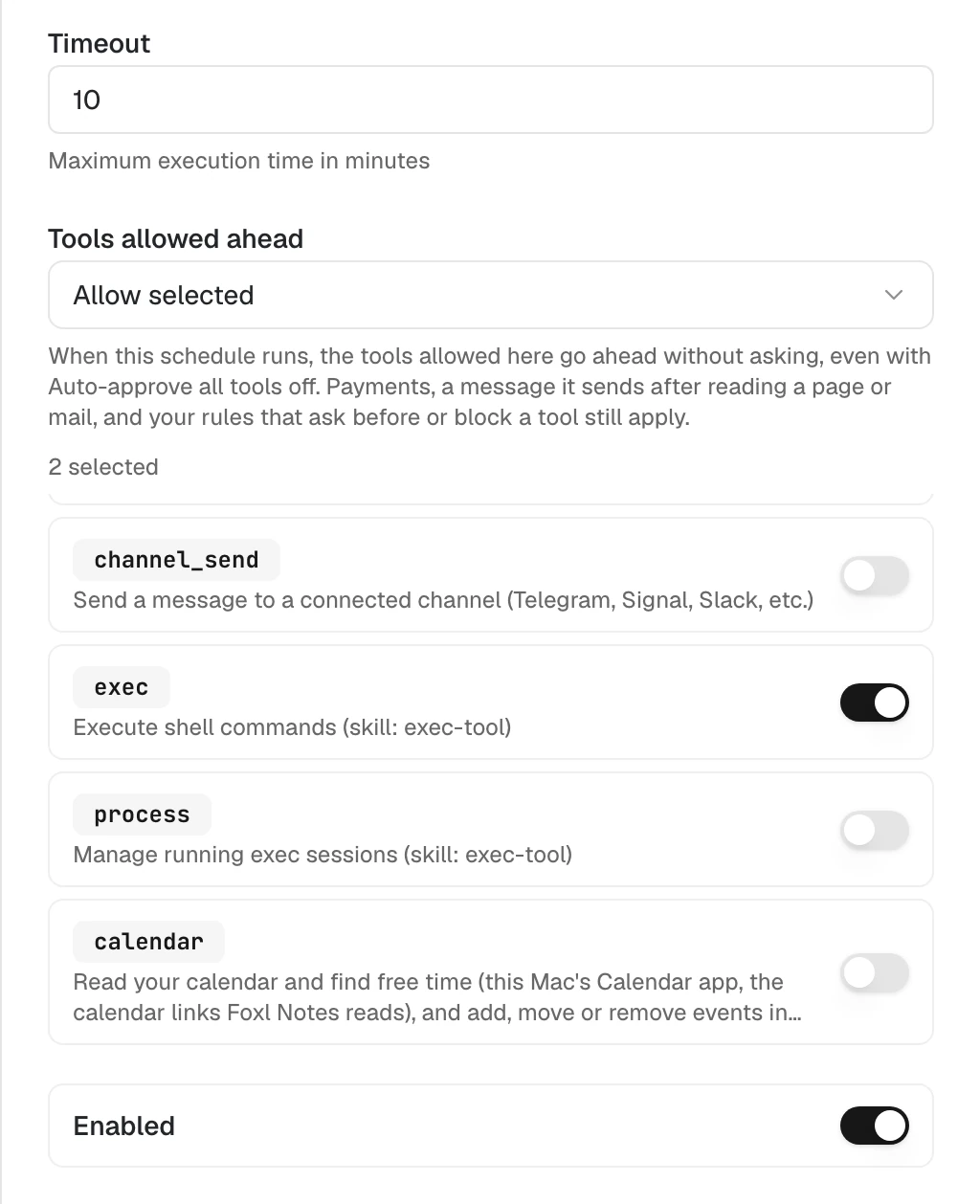
The tools you allow go ahead even with Auto-approve all tools off. The choice is kept on that schedule and read only by its runs, so your chats, your other schedules and Settings stay as they are. Payments, a message it sends after reading a page or mail, and your rules that ask before or block a tool still apply, whatever you allow. Allowing more is done in Foxl on the computer; from a phone or app.foxl.ai you can allow fewer.
A schedule that still asks after a read, as one does with Auto-approve all tools off, now reads the pages a news or search page links to without asking, when it reads each link exactly as the page wrote it. It reads them the way it reads any web page, with no sign-in, saved key or anything else of yours sent along. A changed or made-up address on another site still waits for you, unless you allowed web_fetch ahead for that schedule.
What Settings shows
In Settings > Safety > By where a run comes from, the Schedules and check-ins row now tells the default from your choice. Until you choose Full access there, the row reads Full access, asks after reading. Choosing Full access is one pick in Foxl on the computer; a phone or app.foxl.ai is refused, as for other widenings.
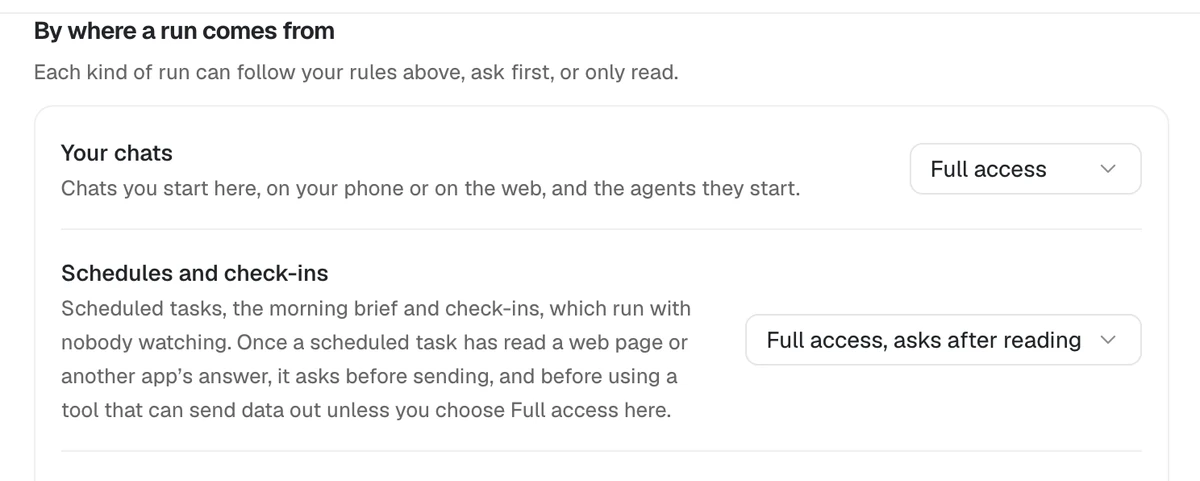
On a computer where an older build stored Full access for that row, the stored value no longer counts as your choice: while Auto-approve all tools is off, a schedule that read a web page or another app's answer now asks before sending data out there, as 0.10.14 intended. Choose Full access for the row again in Foxl on the computer to stop those asks; rows you narrowed stay narrowed.
From Foxl, on one screen
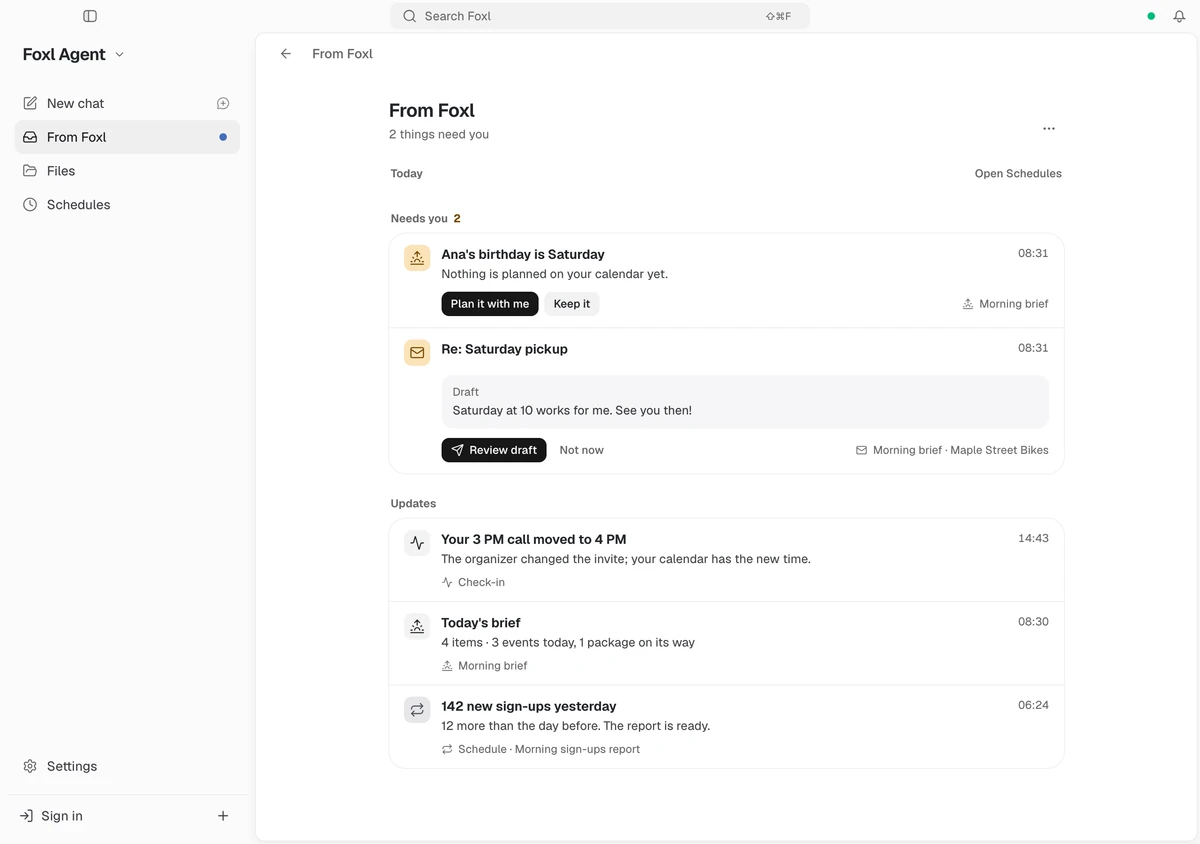
From Foxl now shows what needs you and its updates on one screen, without tabs. Needs you comes first and Updates follows, each as one short list with its own times, so both can fit before you scroll. Opening From Foxl marks what it shows as read, so no blue dots flash there on the way in, and the bell's panel still shows what is unread, with Mark all as read at its top.
Also in this release
Notes AI now works on Antigravity CLI (agy, experimental): summaries, titles, coaching reports, follow-up emails, speaker names and the questions you ask about a note run on agy, each as one request without tools. Live translation, Live Q&A and Dictate anywhere's cleanup still do not run on agy, because it takes about 5 seconds to answer, and Notes now says so in your language. Chats on agy now get a title as well, and a new chat's suggestions come from agy.
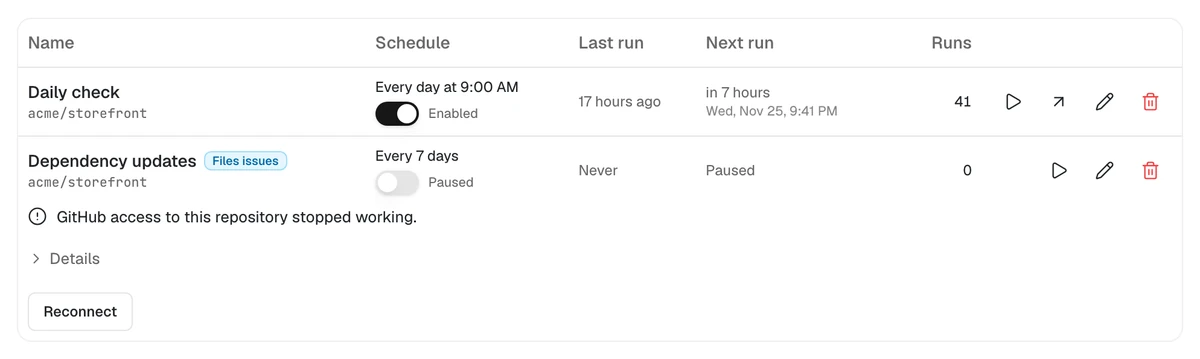
A Foxl Code schedule whose last run failed now says what happened in one line, in your language, with Reconnect when GitHub access to the repository was lost, including when the Foxl GitHub App was uninstalled or suspended. GitHub's full error is under Details instead of in orange on the row.
Coding tasks on your computer get their own switches: Settings > Code > This computer now has Run coding tasks here and Keep coding tasks in a sandbox, both changed in Foxl on the computer itself. A task that runs there lists its requests and the follow-ups waiting to run on its page, where you can edit, reorder, remove or run one now, on your computer, on app.foxl.ai or on your phone, and a task Foxl stopped mid-run offers Continue. Undo takes back one request: it removes what that request changed, as a new commit on the task's pull request, and keeps the work of the others; if a later request changed the same file, Foxl says which file and changes nothing. You can also run one request on two or three coding agents side by side, each on its own branch, and keep the one you want, and comment on the lines a task changed to send the comments as its next request.
Asking Foxl in a chat to run a schedule no longer says it started when it did not. It starts the schedule only when that chat has read nothing from outside it, and looking your schedules up counts as reading; otherwise it tells you to press Run now on the Schedules page.
A card that asks before a tool runs is now titled with what the tool does and labels its details in your language, such as Path: and Command:. System tools names each tool in plain words in your language as well, and Show tool IDs at the bottom of the page brings the IDs back.
A browser step that pays for nothing, such as deleting a post on x.com, no longer stops at a "can pay or book" card. Kimi K3 is no longer in the model list: a chat, schedule, Notes or dictation setting, agent or fallback model that used it now runs on the default model, Claude Sonnet 5.5, and the model picker and the agent editor say so, while chats that ran on Kimi K3 still open as they were.
Foxl on an Android phone older than 0.10.9 now asks you to update once each time it opens, as Foxl on a computer, an iPhone or iPad and the web already do. Nothing stops working yet: the update button opens Google Play (or downloads the new APK, if Foxl was installed from one), and Later waits until Foxl next opens. In the iOS and Android apps, a switch that is on is now black in Foxl's default colours (grey in dark mode), as on the desktop, instead of blue, and a colour theme you picked still tints it with its own colour. The apps get that with their next update, on an iPhone or iPad once the App Store has approved it.
References and further reading
- Foxl v0.10.15 release notesRelease
- Download FoxlReference