Foxl v0.2.51: Notes Integration and the Recording Gates
The Notes shell integration first landed in v0.2.50. v0.2.51 kept it, fixed GPT-5.x routing, and began a microphone repair that required four production gates and was complete only in v0.2.53.
On this page
Published on June 7, 2026, this post is the historical release record for Foxl v0.2.51. It documented the move to one Foxl Desktop experience, but the tagged source places the actual Notes super-app merge in v0.2.50, immediately before this release. v0.2.51 retained that integration and shipped a GPT-5.x routing fix plus the first part of the production microphone-permission work.
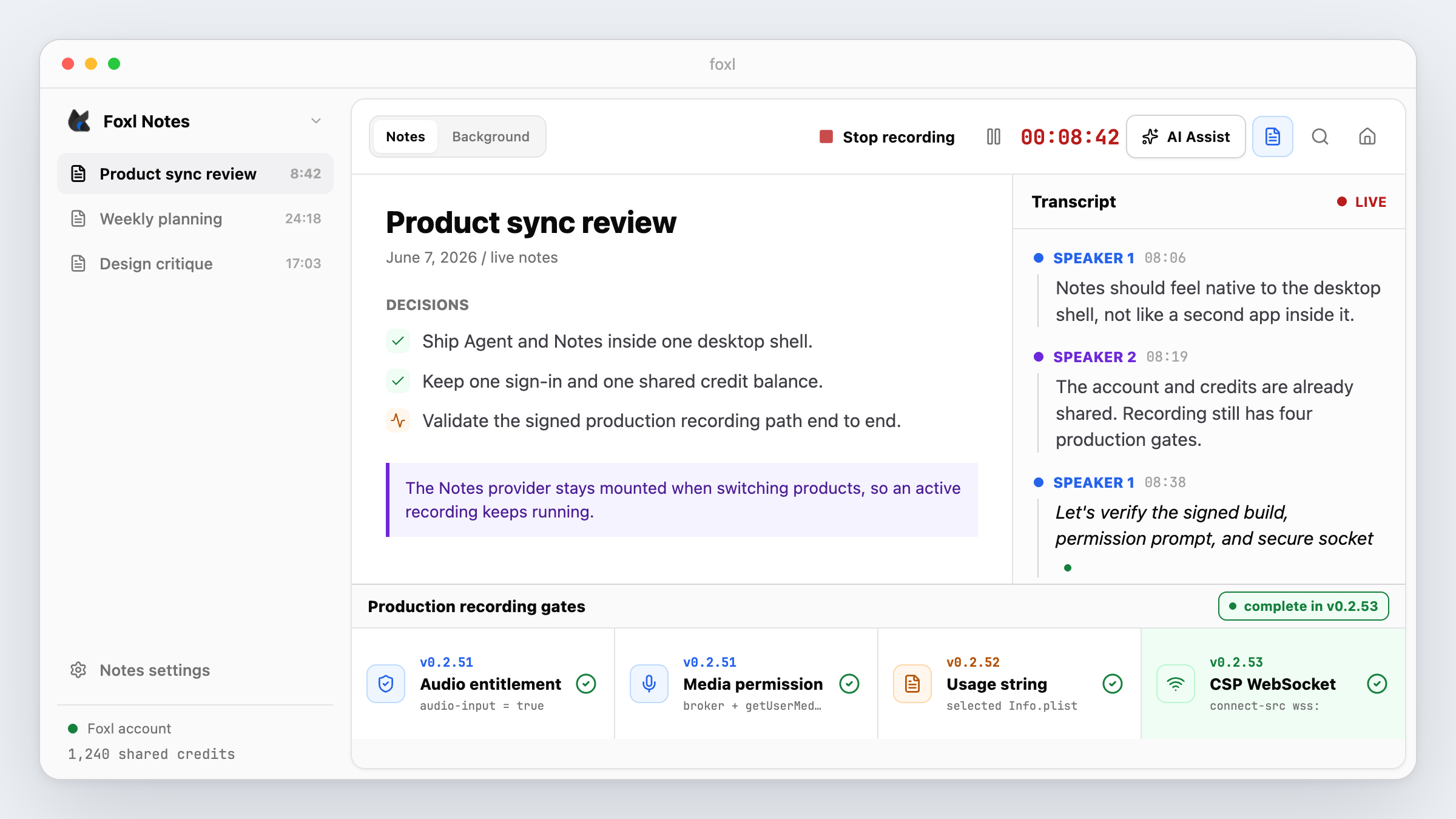
Correction (July 16, 2026): the original post said v0.2.51 made Start Recording work on a fresh production install. It did not. v0.2.51 and v0.2.52 were premature recording-fix releases. v0.2.51 added the macOS audio entitlement and Electron media permission handlers, but the production build did not put the microphone usage string into its selected Info.plist. v0.2.52 fixed that packaging path and requested TCC access before capture, but its production CSP still blocked the secure transcription WebSocket. Production recording fully worked only in v0.2.53, after
wss:was added toconnect-src.
What had shipped by v0.2.51
The supported desktop experience put Foxl Agent and Foxl Notes behind one product switcher. Notes used the shell sidebar for recordings and the shell header for recording, transcript, and AI controls instead of rendering a second app frame. The Notes provider stayed mounted across product switches, and the source included a floating recording pill for returning to an active note.
The account and billing architecture was also unified. Notes requested a transcription session from the Foxl relay, which checked the signed-in account and its credits, presigned a short-lived Amazon Transcribe URL, and returned that URL to the client. That relay contract was deployed. In a client that passed every production gate, audio would travel directly to AWS while small requests metered elapsed time against the same Foxl credit balance used by the other products.
getUserMedia({ audio: true })
  -> renderer PCM audio
  -> POST /transcribe/session (credit check + presign)
  -> wss://transcribestreaming... (client directly to AWS)
  -> POST /transcribe/meter (Foxl credit deduction)
That was the intended recording path, not proof that the signed desktop binary could complete it. The v0.2.51 production gates described below were incomplete, so the cross-product recording workflow was not usable in that release.
The product direction was one supported Foxl Desktop install and one sign-in. The repository still retained the original standalone Electron host and its separate foxl-ai/notes updater feed for historical and host-build purposes. v0.2.51 therefore did not erase that feed or automatically migrate an existing standalone installation.
What v0.2.51 fixed for GPT-5.x
Amazon Bedrock exposed these OpenAI models through the Responses API, while the Foxl relay's Claude-compatible models used the Messages API. v0.2.50 introduced a shared relay model builder, but the desktop's main streaming-chat handler bypassed it and always constructed an Anthropic client. GPT-5.5 and GPT-5.4 therefore still reached/v1/messages and failed.
GPT-5.x       -> OpenAIModel    -> /openai/v1/responses
Claude and peers -> AnthropicModel -> /v1/messages
v0.2.51 changed that handler to use the shared builder, fixing the signed-in Foxl-account path in desktop chat and the connected app.foxl.ai flow. The cumulative-delta normalization that prevented repeated GPT-5.x text was separate work already shipped in v0.2.50 at the Bedrock transport boundary.
The four production gates for recording
A signed, hardened macOS build had to pass four independent gates. A development build could miss the packaging and CSP failures, which is why local success did not establish production readiness.
- Audio entitlement. The signed app needed
com.apple.security.device.audio-input = truein its entitlements. v0.2.51 added it. - Selected Info.plist and TCC permission. The exact electron-builder config selected by the production command had to emit
NSMicrophoneUsageDescriptioninto the built Info.plist. macOS TCC could then prompt for, record, and later check microphone consent for Foxl. The build used--config electron-builder-production.yml, so the same key inpackage.jsondid not satisfy this gate. v0.2.52 added the key to the selected YAML config. - Electron permission broker plus getUserMedia. The main process needed
setPermissionRequestHandlerandsetPermissionCheckHandlerto broker Electron media requests, while the renderer still had to callnavigator.mediaDevices.getUserMedia({ audio: true }). v0.2.51 added the session handlers around the existing renderer capture. v0.2.52 also made the recorder proactively invoke theget-microphone-permissionIPC path beforegetUserMedia, so denial produced an actionable error. - CSP
wss:. After microphone capture, the renderer opened the relay-presigned secure WebSocket directly to Amazon Transcribe. In CSP,https:does not authorizewss:. The production policy therefore needed a rule equivalent toconnect-src ... https: wss:. Only v0.2.53 added it.
Release-by-release correction
- v0.2.51, June 7: shipped the audio-input entitlement, Electron's media permission handlers, and the existing
getUserMediacapture path. Its selected production builder config omittedNSMicrophoneUsageDescription, so the signed app could not complete the TCC permission flow. - v0.2.52, June 7: put the microphone usage string in the selected production config and proactively requested permission before capture. Recording still failed after capture because CSP blocked the Transcribe
wss://connection. - v0.2.53, June 7: allowed
wss:in productionconnect-src. This was the first release in which the complete production recording path worked.
Current status and historical downloads
Do not use v0.2.51 or v0.2.52 to validate recording. See the current Foxl Notes overview and recording guide for supported behavior, or the release history for later changes. The original v0.2.51 binaries remain available as a historical artifact in the v0.2.51 GitHub release.
References and further reading
- Foxl Notes overviewDocumentation
- Recording troubleshootingDocumentation